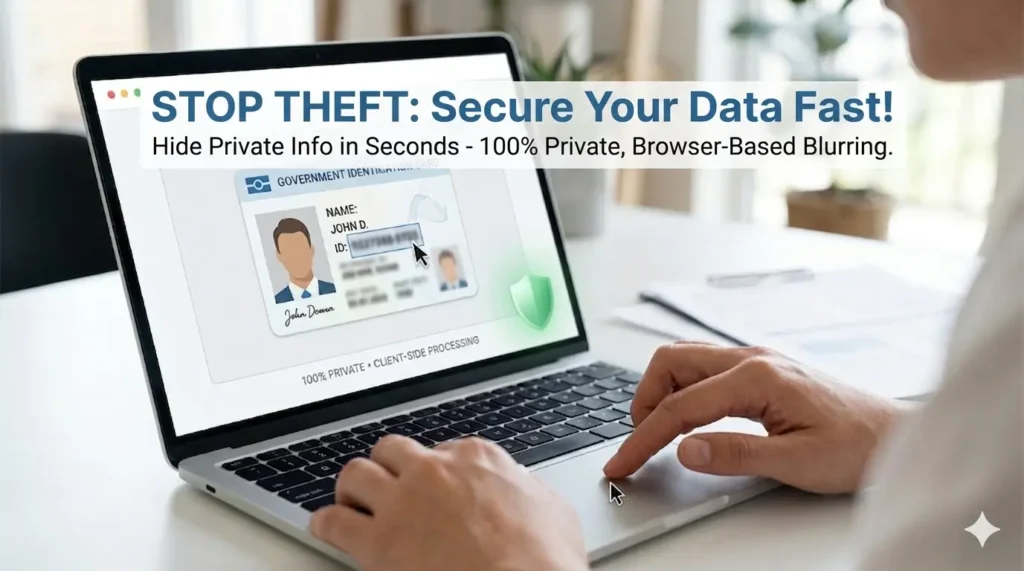
In an era where data is often called the “new oil,” protecting your personal information has transitioned from a luxury to a fundamental necessity. Every time you share a screenshot, a bank statement, or a government ID online, you are potentially exposing yourself to identity theft, financial fraud, and privacy breaches. Learning how to blur sensitive information effectively is the first line of defense in maintaining your digital security.
Why Blurring Information is Non-Negotiable
The internet never forgets. Once a document is uploaded to a cloud server, sent via email, or shared on social media, it can be cached, archived, or screenshotted by third parties. If that document contains unredacted details like your home address, credit card digits, or private signatures, you are essentially handing over the keys to your personal life.
The primary goal of using a tool to blur sensitive information is to make specific data points unreadable while keeping the rest of the document’s context intact. This process, often referred to as “redaction,” is a standard practice for legal, medical, and financial professionals, but it is now equally important for everyday internet users.
Identifying What Needs to be Blurred
Before you hit the “send” button, you must perform a quick privacy audit of your files. Many users overlook small details that can be exploited. Here is a breakdown of what you should always consider blurring:
- Financial Identifiers: This includes bank account numbers, transaction IDs, and the middle digits of credit cards. Even a partial view of a statement can give bad actors enough context to bypass security questions.
- Government-Issued IDs: Passports, driver’s licenses, and national ID cards contain a wealth of PII (Personally Identifiable Information). Always blur the unique ID numbers and barcodes.
- Contact Details: While your name might be public, your private phone number and physical home address should always be shielded from the general public.
- Digital Metadata & Credentials: If you are a developer or a technical professional, sharing a snippet of code or a configuration file might accidentally expose API keys, passwords, or server IP addresses.
The Evolution of Redaction: From Sharpies to Digital Blur Tools
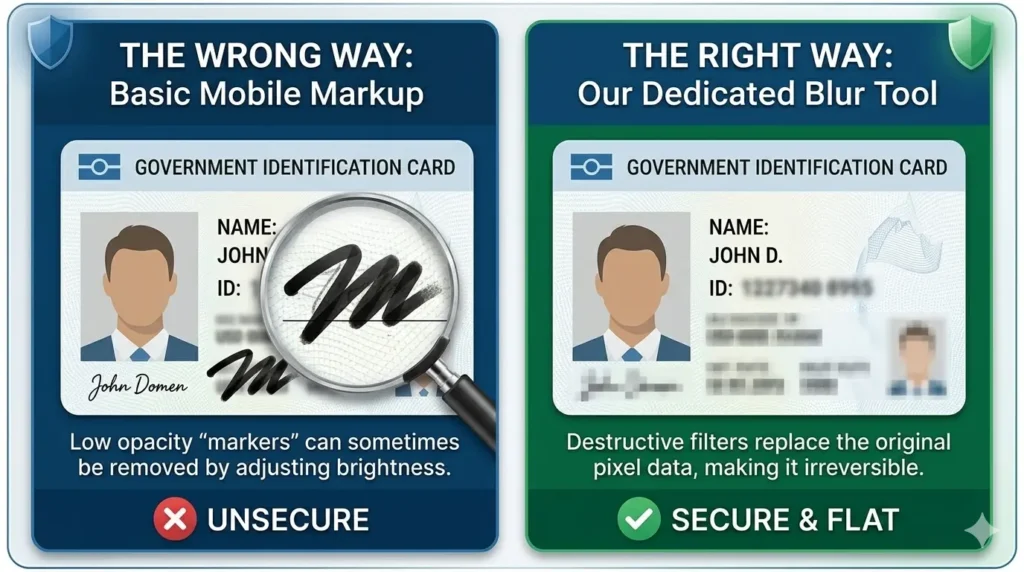
Historically, people used black permanent markers to cross out sensitive text on physical paper. However, in the digital world, simply drawing a black box over text in a basic photo editor is often insufficient. Digital “markers” can sometimes be removed or made transparent by adjusting the brightness and contrast of the image.
Modern digital blurring uses complex algorithms to pixelate or “smear” the underlying data. This ensures that even with advanced image manipulation software, the original text cannot be recovered. By using a dedicated tool to blur sensitive information, you are applying a destructive filter to those specific pixels, making the data recovery-proof.
Why Traditional Methods Often Fail
Many users rely on built-in smartphone markup tools to hide information. While convenient, these tools are often designed for aesthetics rather than security. For instance, some “brushes” have low opacity, meaning the text underneath is still digitally present. A professional-grade blur tool, however, replaces the sensitive area with randomized pixel patterns, providing a much higher level of security for Tier-1 market standards where data privacy laws like GDPR and CCPA are strictly enforced.
Best Practices and Methods to Blur Sensitive Information Effectively
When it comes to document security, not all methods are created equal. While many users believe that any form of “covering up” text is sufficient, the technical reality is quite different. To truly blur sensitive information so that it remains unrecoverable, you must understand the distinction between superficial edits and permanent data redaction.
Manual Redaction vs. Professional Blurring Tools
Most operating systems come with basic image editors, such as Paint on Windows or Markup on iOS and macOS. While these are handy for quick annotations, they often fall short in high-stakes privacy situations.
- The “Highlighter” Trap: Many people use a black highlighter tool to cover text. However, if the opacity is not set to 100%, the text remains visible when the image’s brightness is adjusted.
- Layer Metadata: Professional design software like Photoshop sometimes saves “layers.” If you export a file incorrectly, a tech-savvy recipient could potentially hide the top layer to reveal the sensitive data underneath.
- The Power of Pixelation: A dedicated tool to blur sensitive information works by modifying the actual pixel values. Once the Gaussian blur or pixelation filter is applied and the file is flattened, the original data is discarded, making it impossible to reverse the process.
How to Use Our Online Tool to Blur Sensitive Information
We have designed our tool to be the fastest and most secure way to handle your documents. Here is a step-by-step guide to ensuring your data is protected before it ever leaves your local environment:
Step 1: Upload Your Document Locally Security begins the moment you select your file. Our tool supports multiple formats, including JPEG, PNG, and PDF. Unlike traditional converters, our interface processes the image within your browser, ensuring that your sensitive documents are not stored on external servers during the editing process.
Step 2: Define the Redaction Area Once your image is loaded, simply click and drag your cursor over the areas you wish to hide. Whether it is a single line of text, a signature, or a face in a photograph, you have total control over the selection. Precision is key—ensure the selection box fully covers the boundaries of the sensitive data.
Step 3: Apply the Blur Filter After selecting the area, our algorithm applies a high-intensity blur. This doesn’t just “cover” the text; it blends the surrounding pixels to create a distorted area that retains the document’s professional look while rendering the specific details unreadable.
Step 4: Final Verification and Download Before downloading, do a final visual check. Once you are satisfied, click “Export.” The tool generates a high-resolution, flattened version of your document, ready to be shared on social media, via email, or uploaded to public portals.
Why Speed and Accessibility Matter
In the fast-paced digital economy, users in the UK, USA, and Canada often need to share documents instantly. Waiting for a heavy software suite to load just to hide one line of text is inefficient. By using a lightweight, web-based utility to blur sensitive information, you combine the security of professional software with the speed of a web app.
Furthermore, our “No Sign-Up” policy aligns with modern UX standards. We believe that privacy tools should not require you to give up your email address to protect your documents. This friction-less experience ensures that you can secure your files in seconds, maintaining both your productivity and your privacy.
Advanced Security and Real-World Applications of Data Blurring
Understanding the mechanics of how to blur sensitive information is only half the battle; knowing the security standards that govern data protection is what truly empowers a user. As we move towards a more transparent yet vulnerable digital world, the tools we choose must prioritize local security over cloud convenience.
Client-Side Processing: The Gold Standard of Privacy
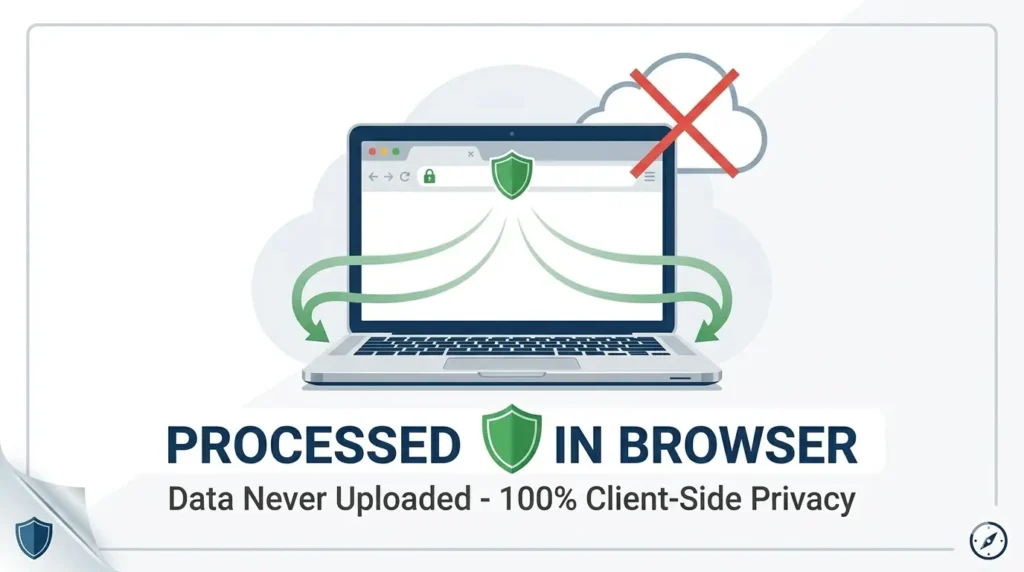
Most users are rightfully hesitant to upload their bank statements or ID cards to a random website. This is where modern web technology has made a massive leap. Our tool utilizes Client-Side JavaScript Processing.
But what does this actually mean for you? It means that when you blur sensitive information using our utility, your file never actually leaves your computer. The “upload” is merely a local preview within your browser. All the blurring, pixelation, and processing happen on your device’s hardware. This eliminates the risk of “Man-in-the-Middle” (MITM) attacks or server-side data breaches. For those interested in the technicalities of web security, the OWASP Top 10 provides excellent guidelines on why minimizing data exposure is a top priority for developers today.
Common Use Cases: When Should You Use a Blur Tool?
Document redaction isn’t just for secret agents or lawyers. It has become a daily requirement for various scenarios:
- Public Portfolios: Freelancers often share screenshots of their work on platforms like Behance or LinkedIn. Using a tool to blur sensitive information like client names or proprietary code ensures you can showcase your skills without violating non-disclosure agreements (NDAs).
- Property Rentals: When applying for a home, landlords often ask for proof of income. You can blur your daily transactions and account balance while leaving the “Total Income” and your name visible.
- Online Identity Verification: Many services require a “Selfie with ID.” To stay safe, you can often blur the non-essential parts of your ID (like your height or eye color) while keeping the photo and name clear for the verification bot. For more tips on identity protection, the Federal Trade Commission (FTC) offers comprehensive resources.
Why Clean UI and No-Registration is the Future
The modern user values their time and their inbox. We have intentionally moved away from the “registration-first” model. By providing a clean, minimalist interface, we ensure that the task of securing a document doesn’t become a chore. There are no cluttered ads to distract you and no long forms to fill out. Just a simple, effective way to blur sensitive information and get on with your day.
Conclusion: Making Privacy a Habit
Privacy is not a one-time setting; it is a continuous practice. In a world where data scrapers and AI-driven identity theft are on the rise, taking thirty seconds to blur sensitive information before sharing a document is the smartest investment you can make in your digital health.
By choosing a tool that emphasizes speed, utilizes local processing, and requires no personal data to operate, you are taking a stand for your own digital sovereignty. Start making redaction a part of your workflow today—because once information is public, it is public forever.
Secure your documents. Protect your identity. Share with confidence.
Frequently Asked Questions (FAQs)
Can blurred information be unblurred or recovered?
If you use a professional-grade tool to blur sensitive information, the original pixels are permanently altered or destroyed. Unlike placing a semi-transparent shape over text in basic editors, a true “Gaussian blur” or “Pixelation” filter makes it mathematically impossible to reverse the process. However, always ensure you “flatten” or export the image as a new file (JPEG/PNG) to remove any hidden data layers.
Is it better to blur or black out (redact) sensitive data?
Both methods are effective if done correctly. Blurring is often preferred for maintaining the document’s professional aesthetic, especially for portfolios or social media. Blacking out (redaction) is the standard for legal and government documents. Our tool allows you to blur sensitive information with high intensity, ensuring that no character recognition (OCR) software can read the underlying text.
Does your tool store my private documents on its server?
No. Privacy is our top priority. Our tool uses client-side processing, meaning the entire process to blur sensitive information happens directly in your web browser. Your sensitive files are never uploaded to our servers, ensuring that your private data stays exactly where it belongs—on your device.
Can I blur information in a PDF file as well as images?
Yes. Our tool is designed to handle various formats, including common image types (JPG, PNG, WebP) and PDF documents. When you upload a PDF, you can select specific areas on any page to blur. Once you are finished, you can download the redacted version as a secure, flattened PDF or image.
Why shouldn’t I just use the “Markup” tool on my phone?
Smartphone markup tools are often designed for quick annotations, not high-level security. Many “brush” tools have slight transparency, or they save the edits as a separate layer that can sometimes be removed with advanced photo editing software. Using a dedicated utility to blur sensitive information ensures that the data is permanently scrubbed from the final file’s pixels.